

The panel's file manager accepts uploads of up to 1 GB per file. For worlds, modpacks, maps or complete folders, SFTP is recommended: a file transfer protocol used through a program installed on your computer. SFTP has no size limit, supports complete folders and resumes interrupted transfers.
1. Connection details
The connection details are in the panel, under the server's Settings, in the SFTP credentials box: the server address and the username. The password is the same one used to sign in to the panel.
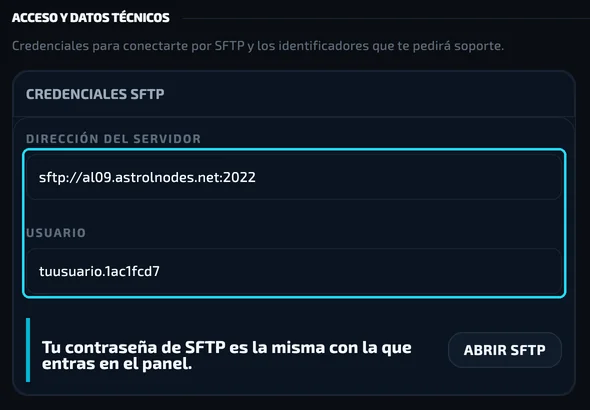
The address is shown on a single line, for example sftp://al09.astrolnodes.net:2022. In the program it is entered in two fields: host (al09.astrolnodes.net) and port (2022). The username always ends with a dot followed by a code (yourusername.1ac1fcd7) and must be copied in full.
Signing in from astrolnodes.net. If you always access the panel with "Log in automatically", your panel account may not have a password. To create one, sign out of the panel, select Forgot password? and enter your email address; you will receive a link to set it. Signing in from astrolnodes.net will keep working as before.
2. Installing FileZilla
FileZilla is a free SFTP client available for Windows, macOS and Linux. Download it only from its official website. The Windows installer includes offers for other programs; untick those options during installation.
3. Setting up the server in FileZilla
- Open FileZilla and go to File → Site Manager.
- Select New site and enter a name, for example your server's name.
- Under Protocol, select SFTP - SSH File Transfer Protocol.
- Under Host, enter the address without
sftp://or the port. Under Port, enter2022. - Under Logon Type, keep Normal.
- Under User, enter the full username. Under Password, the password of your panel account.
- Select Connect.
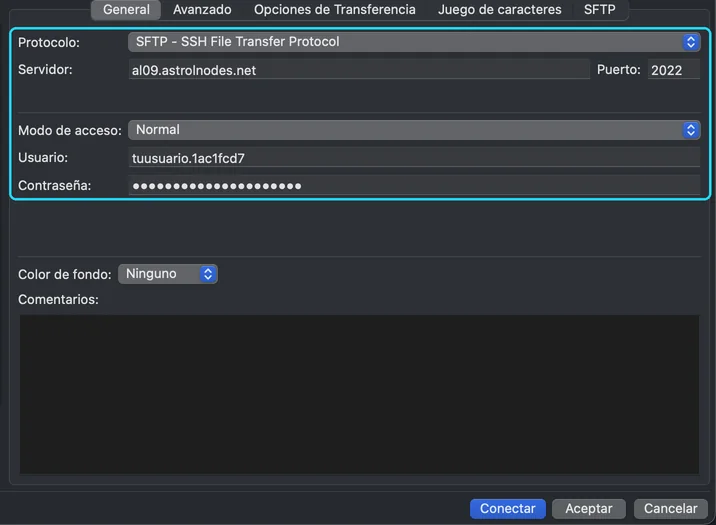
The configuration is saved. For later connections, open the Site Manager, select the site and click Connect.
4. First connection
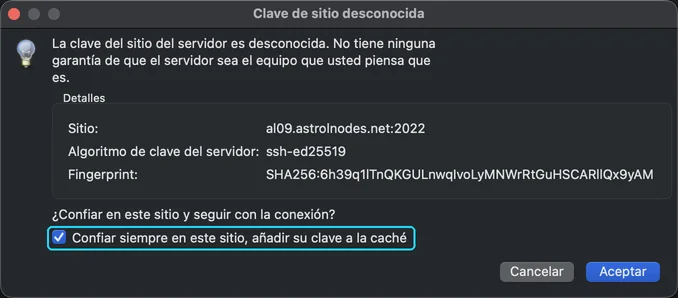
On the first connection, FileZilla shows an Unknown host key warning. This is a standard check for any new SFTP server. Tick Always trust this host, add this key to the cache and select OK. The warning will not be shown again.
5. Transferring files
Once connected, the window is split into two panes: your computer's files on the left and the server's on the right. To upload files or folders, drag them from the left pane to the right one. To download them, drag in the opposite direction. The progress of each transfer is shown in the queue at the bottom.
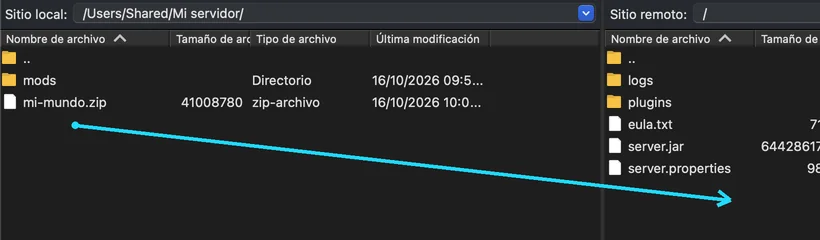
Before dropping the files, open the destination folder in the right pane. In Minecraft, mods go in mods and plugins in plugins. Transfers that do not complete are listed under Failed transfers; to retry them, right-click and select Reset and requeue.
6. Unarchiving .zip files
If you uploaded a .zip file, go to Files in the panel, open the file's ··· menu and select Unarchive. Once the process has finished, delete the .zip to free up space.
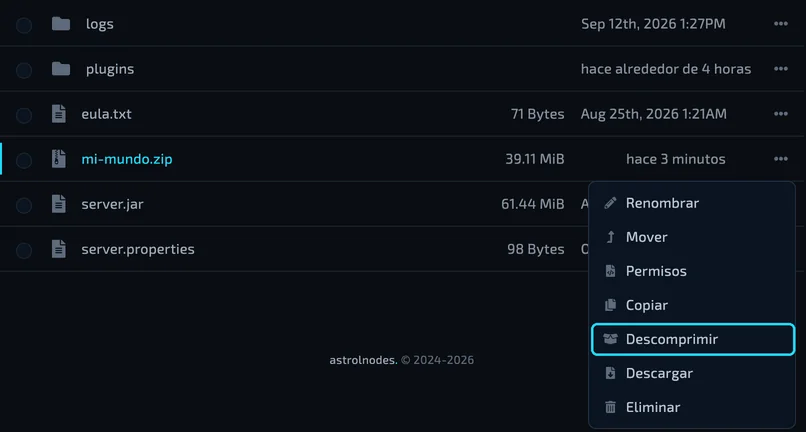
For a world, stop the server before uploading it. The world folder must sit at the root of the server and be named after the level-name value in server.properties (world by default), not inside another folder such as world/world.
Troubleshooting
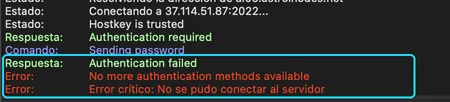
"Authentication failed" or "No more authentication methods available". The username or password is incorrect. Check that the username is complete, including the dot and the final code, and that the password is the one of your panel account. After several failed attempts, access may be blocked for a few minutes.
"Connection timed out" or no connection is established. Check that the protocol is SFTP (not FTP or FTPS) and that the port is 2022. Some corporate or educational networks block this port; in that case, connect from another network.
"Permission denied" when uploading or deleting files. Your user does not have file management permission on that server. The owner can grant it under Sub-Users.
If you need help with the transfer, open a ticket and the support team will review it with you.
Was this article helpful?
Need more help?
Open a ticket and the support team goes through it with you.