

From the panel you can move a server to another game without ordering a new one. The plan, the IP and the price stay the same, and the current game can be saved to come back to it later.
1. Available games
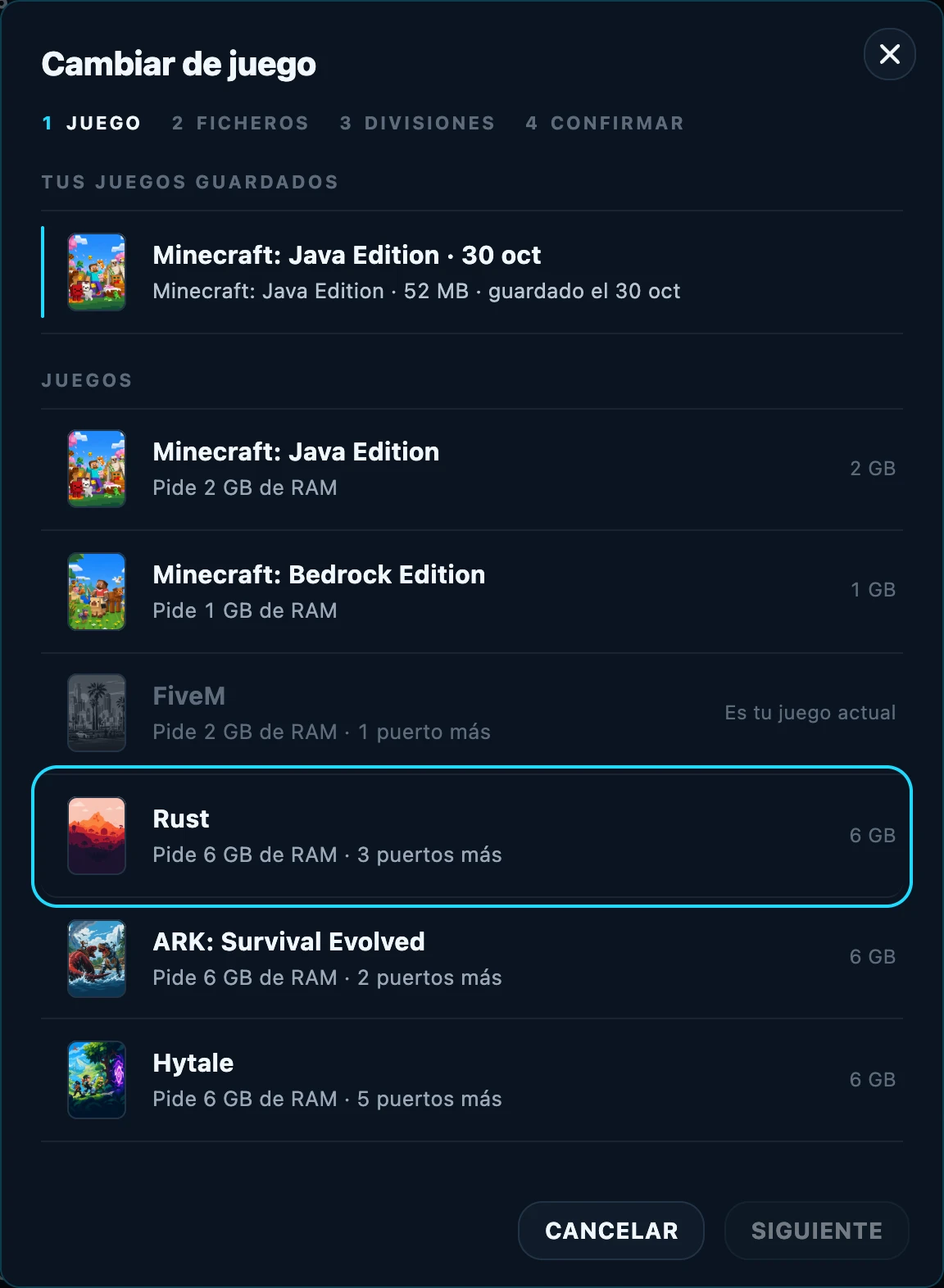
| Game | Minimum plan RAM | Extra ports | Location |
|---|---|---|---|
| Minecraft: Java Edition | 2 GB | — | All |
| Minecraft: Bedrock Edition | 1 GB | — | All |
| FiveM | 2 GB | 1 (txAdmin) | All |
| Rust | 6 GB | 3 | Germany |
| ARK: Survival Evolved | 6 GB | 2 | Germany |
| Hytale | 6 GB | 5 | All |
Games that don't fit the plan are listed with the reason: RAM, free ports or location. The ports a game needs are assigned automatically. If what's missing is RAM, you can upgrade your plan.
2. Before you start
- The server is stopped during the switch. It usually takes one to three minutes; Rust and ARK download several GB and can take up to ten minutes.
- The server owner and subusers allowed to reinstall it can switch the game.
- Free trials can switch games too.
3. Switching the game
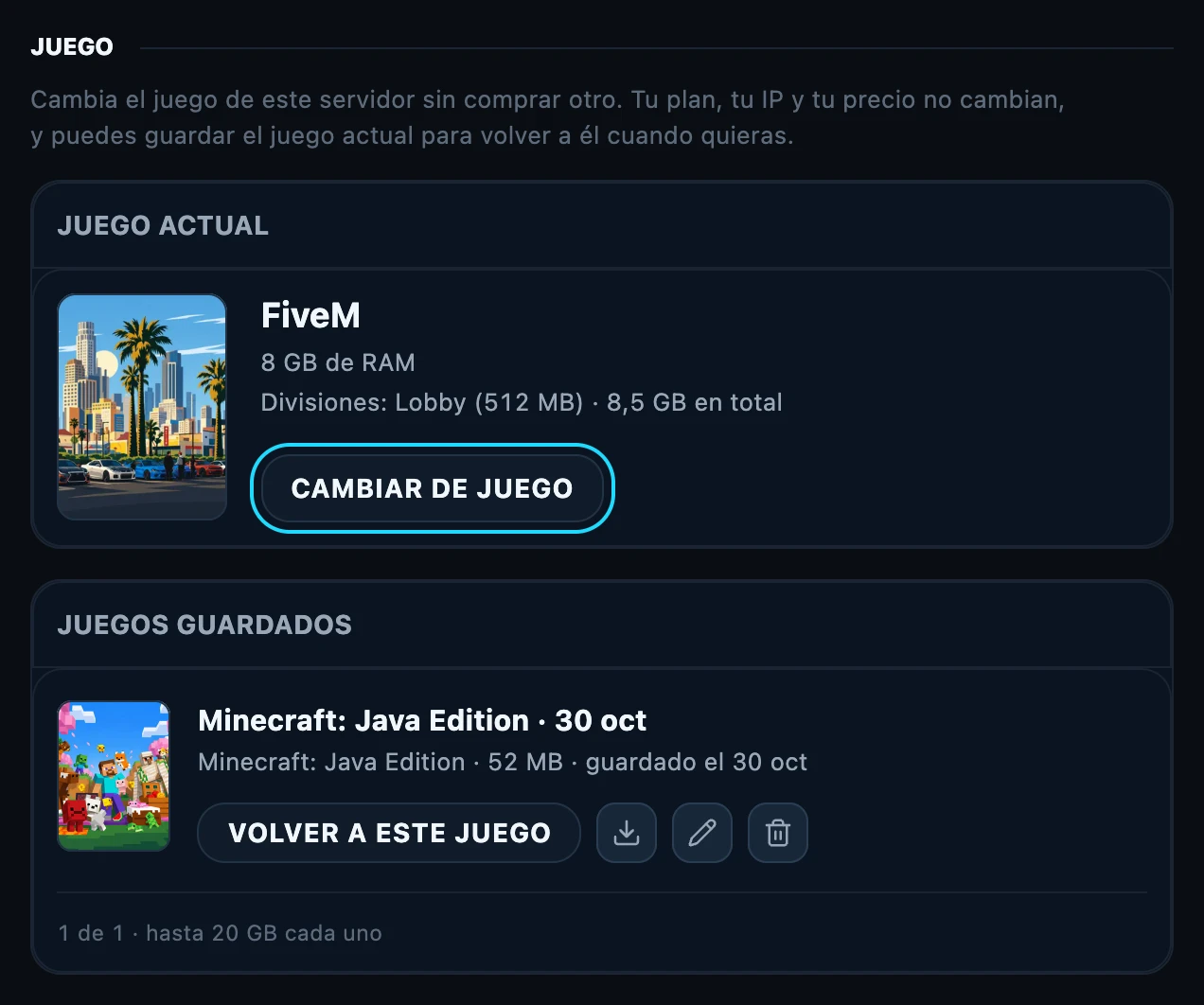
- In the panel, open the server's Settings. The Game section shows the current game and the saved games. Select Switch game.
- Choose the game. Saved games are listed first, then the rest.
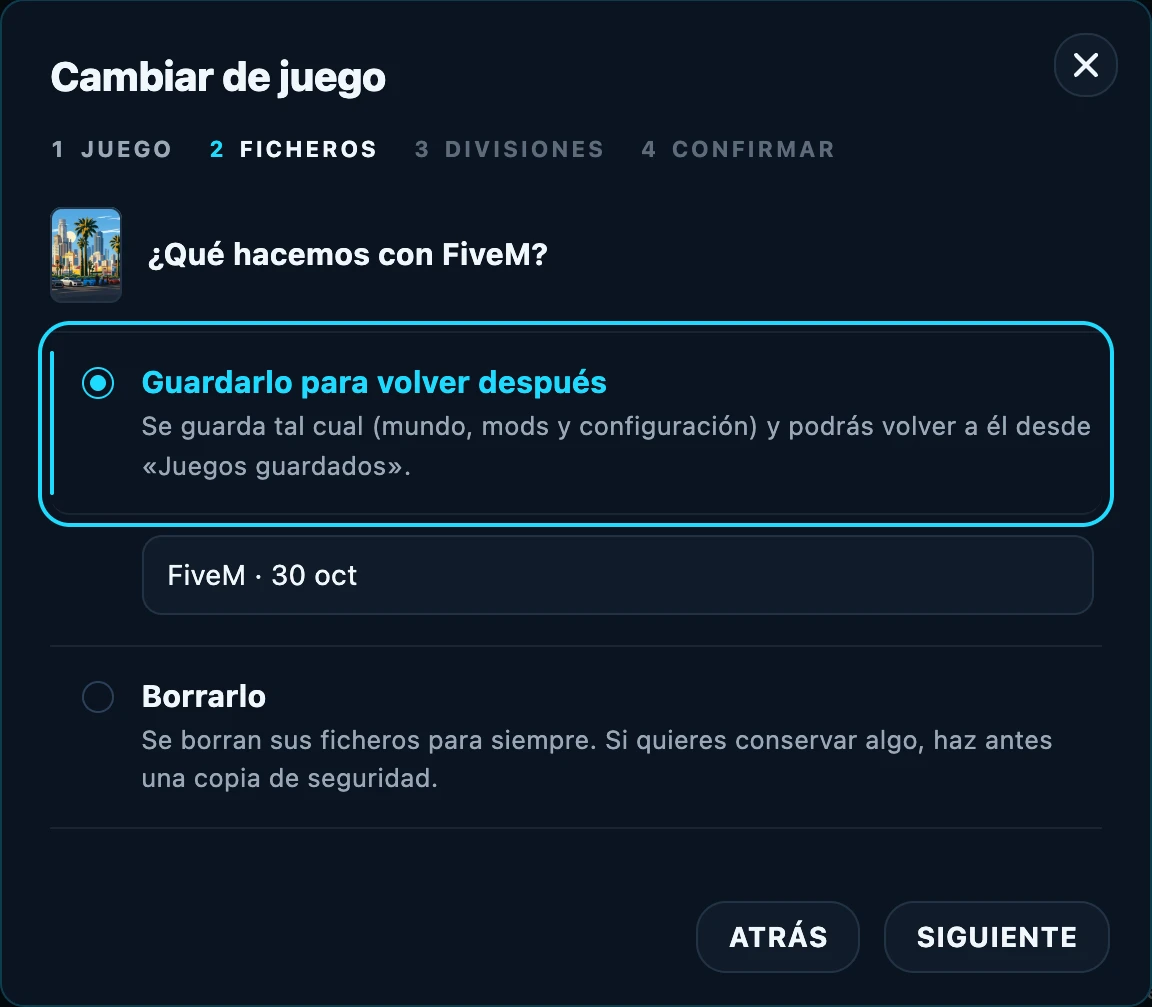
- Choose what to do with the current game. Save it to come back later keeps the world, the mods and the settings. Delete it removes its files for good.
-
If the server runs Minecraft and has divisions, choose whether to keep or remove them. Remove them deletes them and gives their RAM back to the main server. While the server isn't running Minecraft, new divisions can't be created.
-
Review the summary and confirm. The panel shows each step of the switch and how long it takes; you can close the page and the switch keeps going on the server.
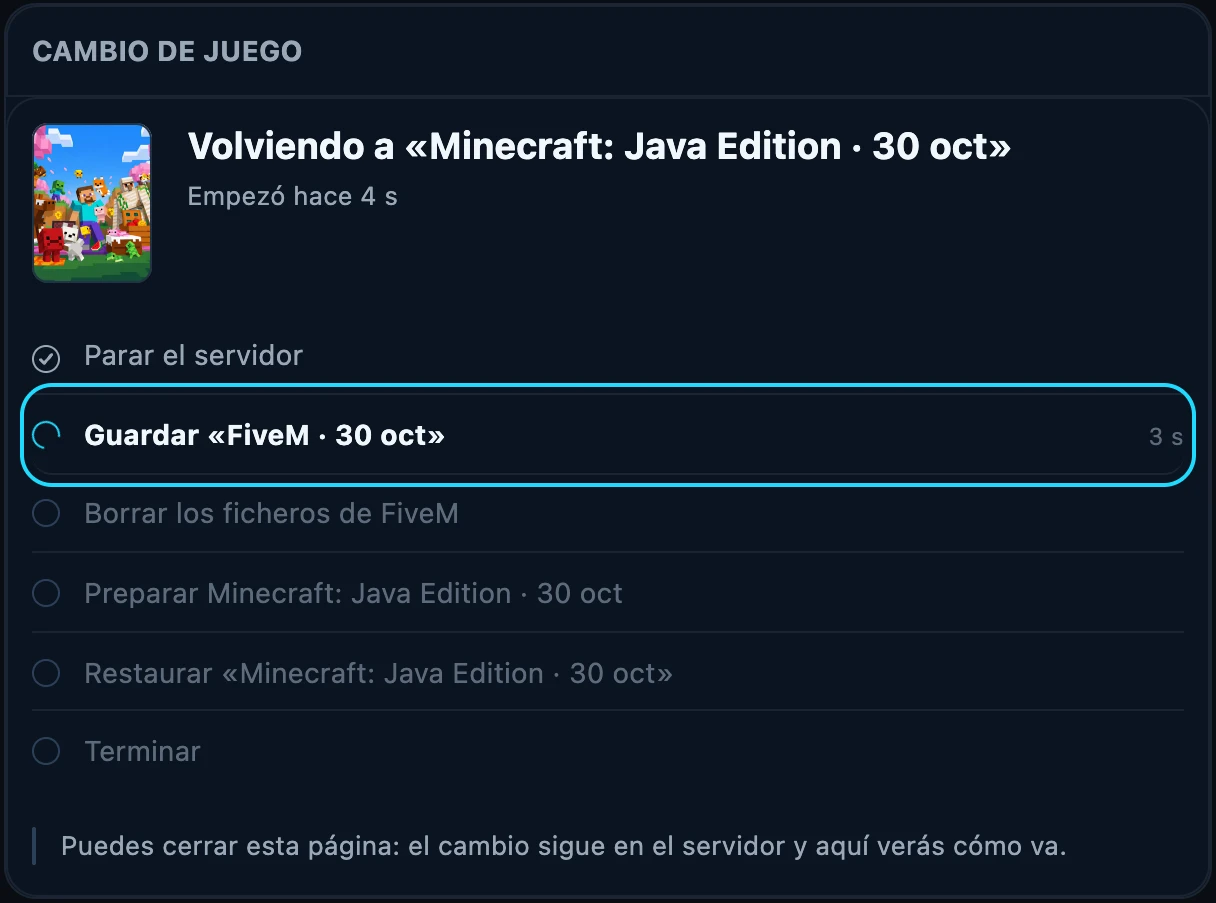
- When it finishes, reload the panel to see the new game's tabs and start the server. With Hytale, the first time the console shows an official Hytale link to sign in with your account and download the server; once it starts, link your account with
/auth login device.
4. Saved games
Each server can keep one saved game of up to 20 GB. From Saved games you can go back to it, download it, rename it or delete it.
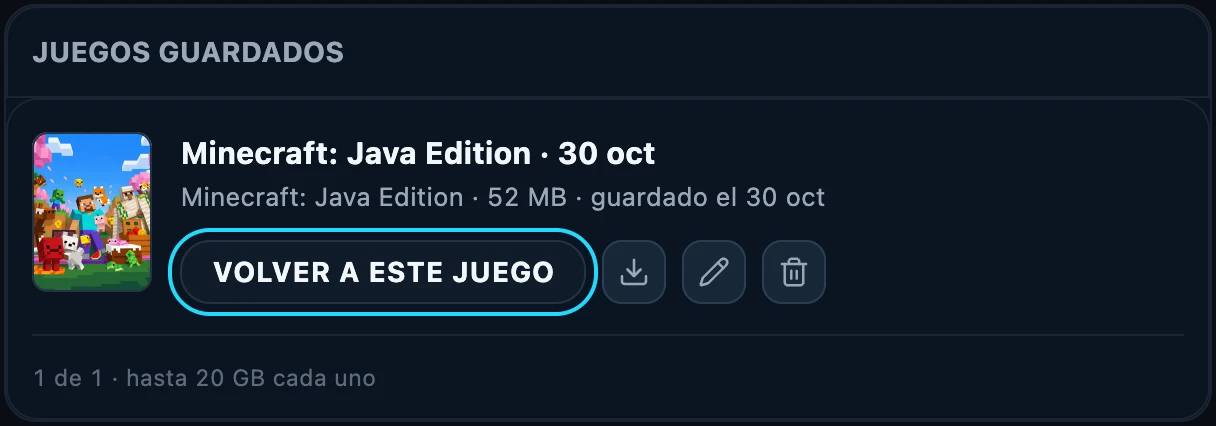
Going back to a saved game restores it exactly as it was saved and frees the slot. Saved games don't count towards the plan's backup quota.
5. Limits
- Five minutes between switches, and ten switches a day per server.
- A server that is suspended, under maintenance or being transferred can't switch games.
If something goes wrong. The panel shows the error. If it happens before the files are deleted, the server keeps its game. If it happens after, you can retry or pick another game. If it keeps failing, open a ticket and we'll look into it.
Was this article helpful?
Need more help?
Open a ticket and the support team goes through it with you.