

Crossplay lets Minecraft Bedrock players (mobile, tablet, Windows and consoles) join your Java server and share the world with Java players. You turn it on from the panel with one button: the panel installs Geyser and Floodgate, configures them and shows the address and port Bedrock players use.
Requirements
- Plugin servers (Paper, Purpur or Spigot) on Minecraft 1.20.5 or later.
- Fabric or NeoForge servers on the latest Minecraft version. Geyser does not publish builds for older ones.
- Forge and Vanilla are not supported.
If the server does not meet the requirements, the Crossplay page says so and explains why.
1. Open the Crossplay page
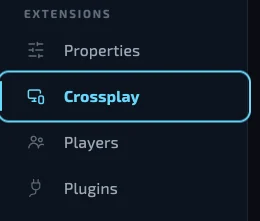
In the panel, open your server and select Crossplay in the sidebar, under Extensions.
2. Enable crossplay
Click Enable crossplay. The panel installs Geyser and Floodgate, reserves a new port just for Bedrock and restarts the server once. It takes about a minute, and the page shows each step as it goes.
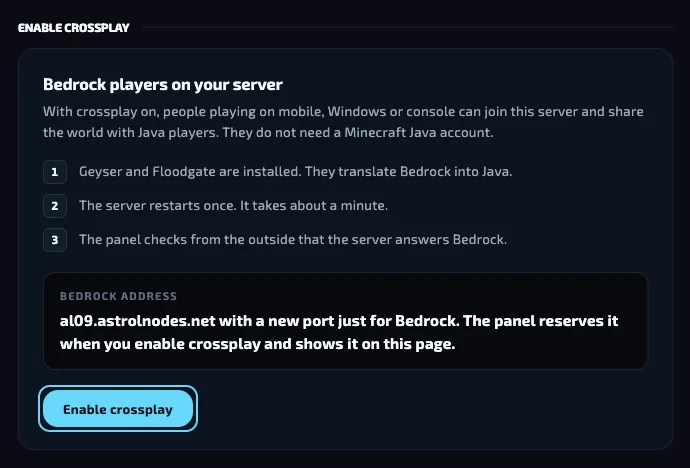
The world, plugins and configuration stay as they are. If the server is not on the latest Minecraft version, the panel also installs ViaVersion, which lets Geyser connect to it. Nothing changes for Java players.
3. Bedrock address and port
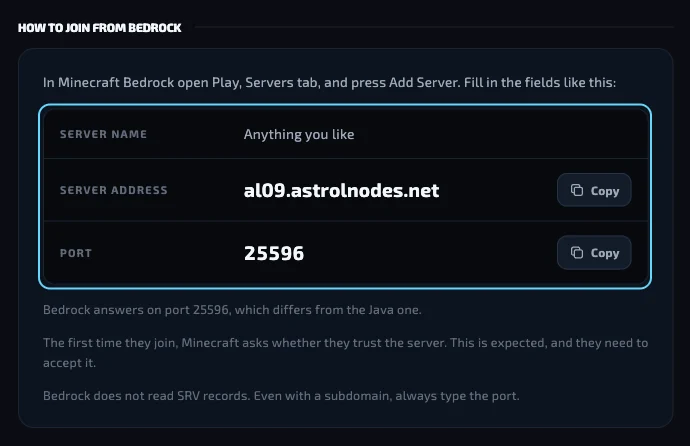
When it finishes, the How to join from Bedrock section shows the server address and the Bedrock port, each with a Copy button. The Bedrock port is different from the Java one.
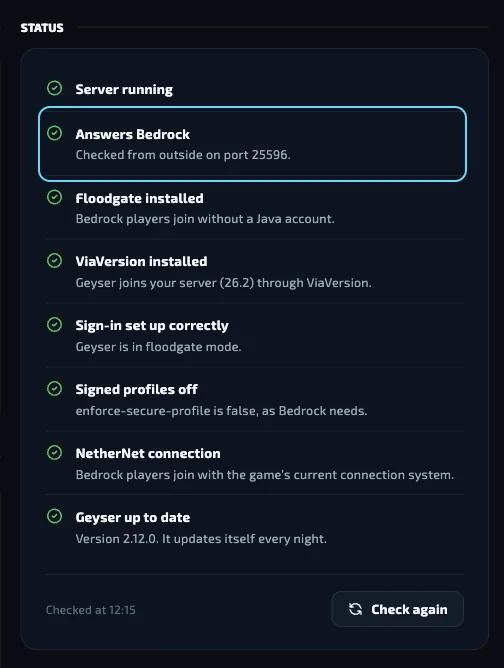
In the Status column, the Answers Bedrock check confirms from the outside that the server accepts Bedrock connections.
On some servers the address is assigned by Warden, the free connection service Geyser uses. In that case the page shows an address ending in wdn.gg and port 443.
4. Join from Minecraft Bedrock
- Open Minecraft Bedrock and press Play.
- Go to the Servers tab and press Add Server.
- Enter a name, the server address and the Bedrock port, each in its own field, and save.
- Select the server in the list to join.
The first time you join, Minecraft asks whether you trust the server. This is expected: accept it, and from then on it joins directly.
Bedrock does not read SRV records. Even with a subdomain, always type the port.
Consoles
Xbox, PlayStation and Switch only let players join the game's featured servers. To join your own server, players use BedrockConnect, a free third-party service that is not part of Astrol Nodes. The Crossplay page lists the steps for each console under By device.
Bedrock players on the server
- They appear with a dot before their name, for example
.Steve, so they never clash with Java accounts. Use the name that way in/op, permissions and bans. - With the whitelist on, add them with
fwhitelist add Gamertag, without the dot. - They do not need a Minecraft Java account.
- They see the same world and the same plugins. Java resource packs and the blocks or items that mods add are not shown on Bedrock.
Maintenance
When a new Geyser version comes out, the panel installs it overnight. If the server is running, it announces it in the chat and restarts the server for a few seconds. That way Bedrock players can join as soon as a new version of the game is released.
If you already had Geyser installed
If you installed Geyser yourself, the Crossplay page detects it and offers Let the panel manage it. The panel installs the latest version, keeps it up to date and keeps your configuration.
From Minecraft Bedrock 26.60, released on 27 October 2026, Bedrock players can only join servers that use NetherNet, the game's new connection system. If your server still uses the previous system, the Crossplay page shows the notice and the Switch to NetherNet button.
Troubleshooting
- Bedrock cannot find the server. Check that the server is running and that you use the Bedrock port shown on the Crossplay page, not the Java one. Then press Check again under Status.
- "You need a Minecraft Java account" appears. Floodgate is missing or Geyser is not in floodgate mode. Press Repair on the Crossplay page.
- The server runs behind a proxy (Velocity or BungeeCord). Crossplay is set up on the proxy. Open a ticket and the support team sets it up with you.
Was this article helpful?
Need more help?
Open a ticket and the support team goes through it with you.