

A singleplayer world or one from another provider can be moved to your server from the panel or over SFTP, depending on its size.
Worlds up to 1 GB
- Compress the world folder into a
.zipfile. - In the panel, go to Files.
- Upload the
.zipand select Unarchive in the file's menu. - Make sure the folder is named after the
level-namevalue inserver.properties(worldby default). - Restart the server.
Worlds over 1 GB
The panel's file manager accepts files of up to 1 GB. Larger worlds are uploaded over SFTP:
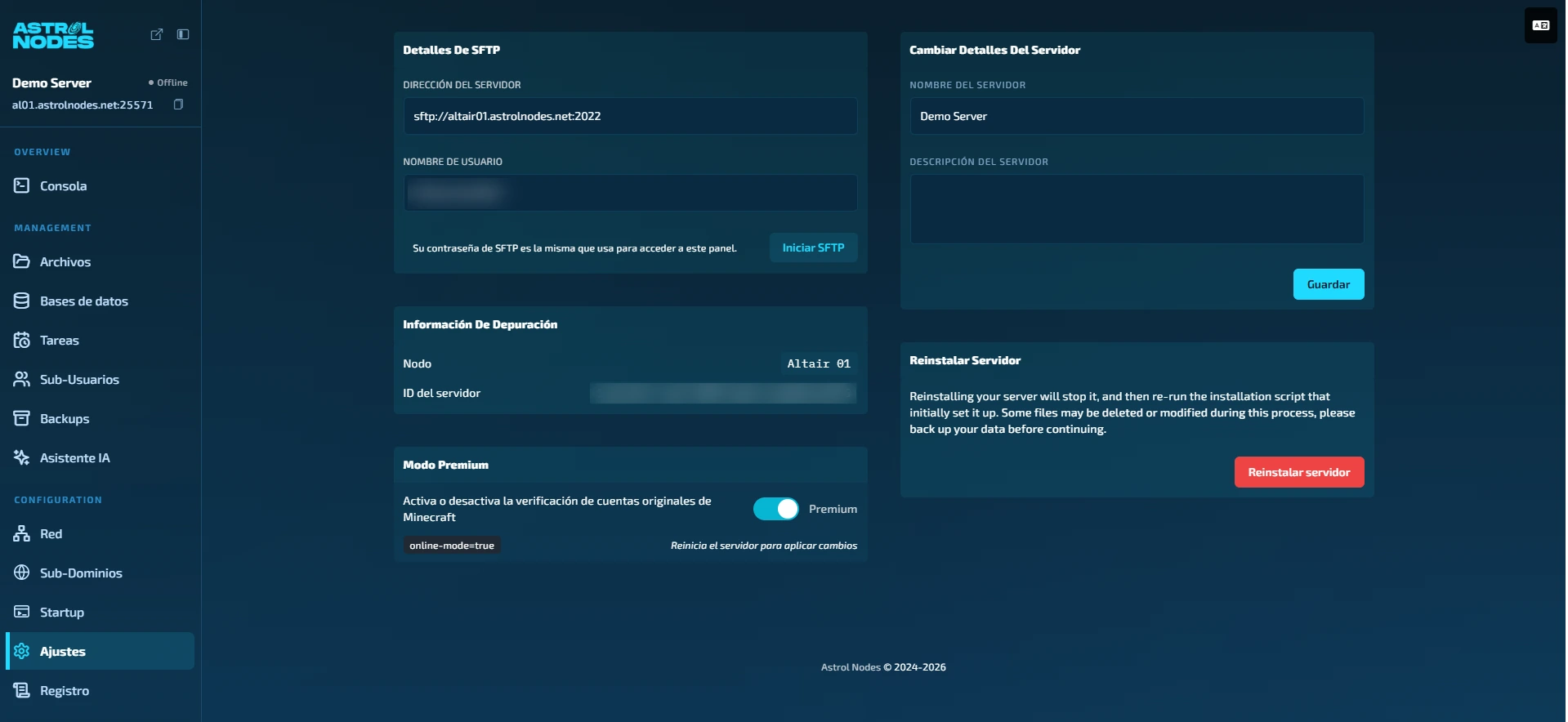
- In the panel, go to Settings. The SFTP credentials box contains the server address and the username. The password is the same one used to sign in to the panel.
- Connect with an SFTP client such as FileZilla. The full procedure, with screenshots, is in Uploading files over SFTP with FileZilla.
- Stop the server and upload the world folder to the root.
- Start the server.
If you need help with the move, open a ticket and the support team will review it with you.
Was this article helpful?
Need more help?
Open a ticket and the support team goes through it with you.